
For Coaches
How to run your first Rival Report.
Five short steps. The whole thing takes about five minutes the first time, and a minute or two every time after.
- Step 1
Open your dashboard
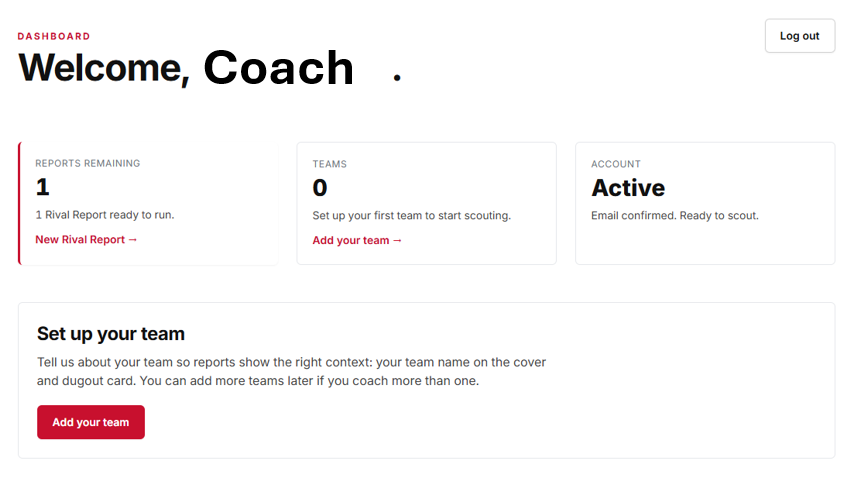
After you confirm your email, sign in. Your dashboard shows how many Rival Reports you have left, your teams, and the reports you have already run.
- Step 2
Add your team
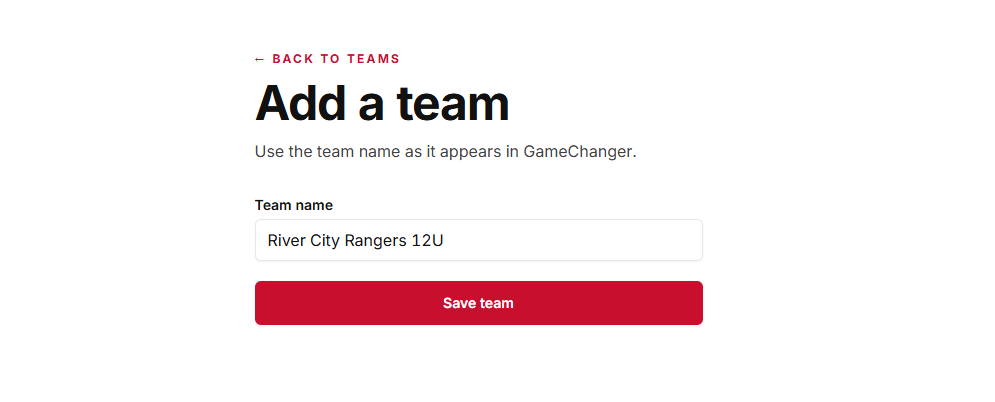
Click Add your team and type your team name as it appears in your scorekeeping app. We pull your age level (12U, 14U, varsity) right out of the name. You can add more teams later if you coach more than one.
- Step 3
Start a new Rival Report
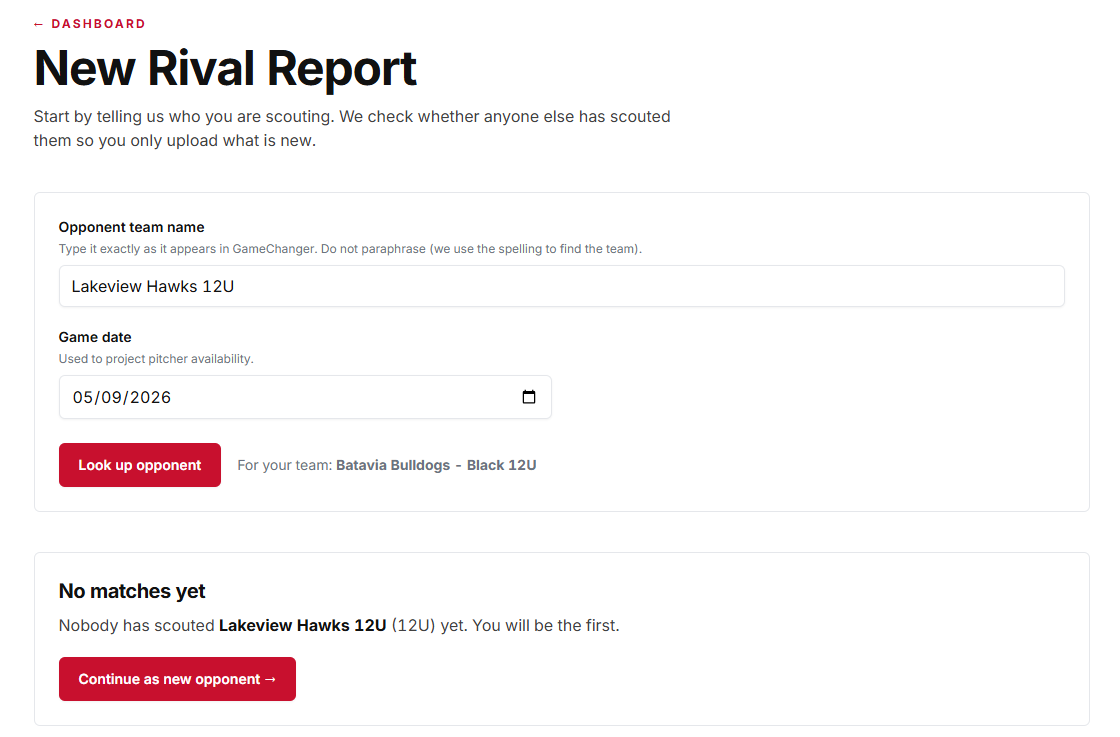
Click New Rival Report. Type the opponent team name exactly as it appears in your scorekeeping app. We check whether anyone else has already scouted them so you only upload what is new.
- Step 4
Upload their box scores
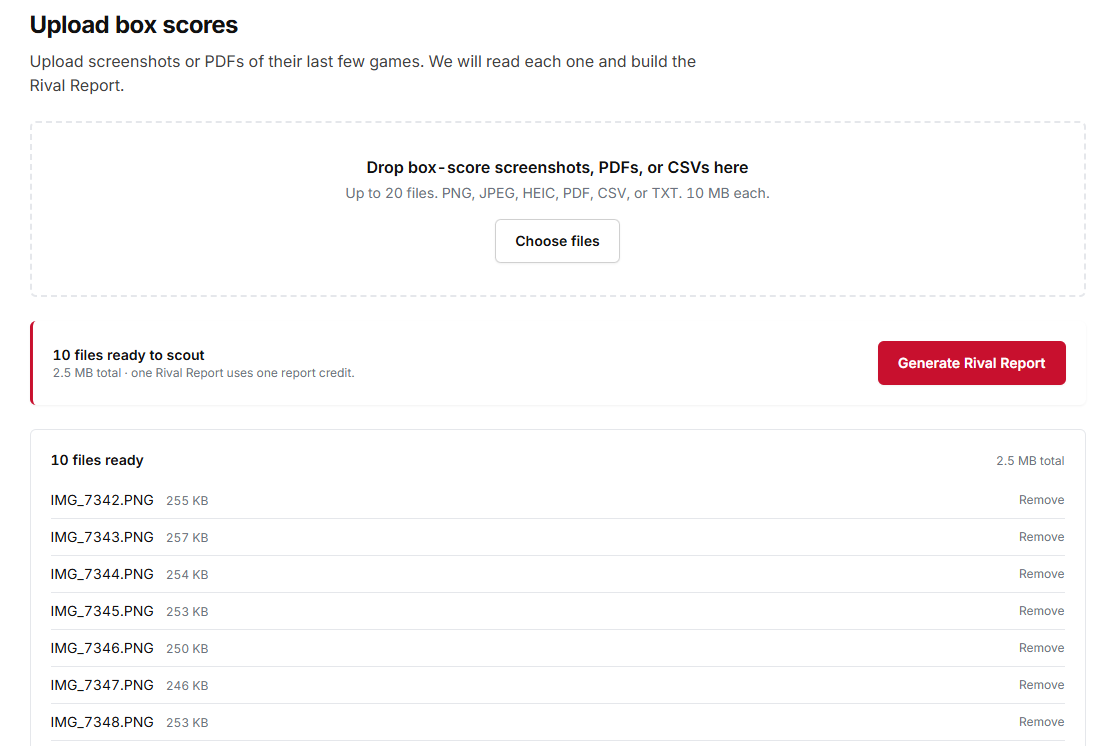
Drop in screenshots, PDFs, or photos of opponent box scores. Each game is usually two screenshots: the hitter table on top, the captions and pitching table on the bottom. Five recent games is plenty.
What a good screenshot looks like
From your favorite scorekeeping app, take one shot of the hitter table and one of the captions plus pitching table for every game you scout.
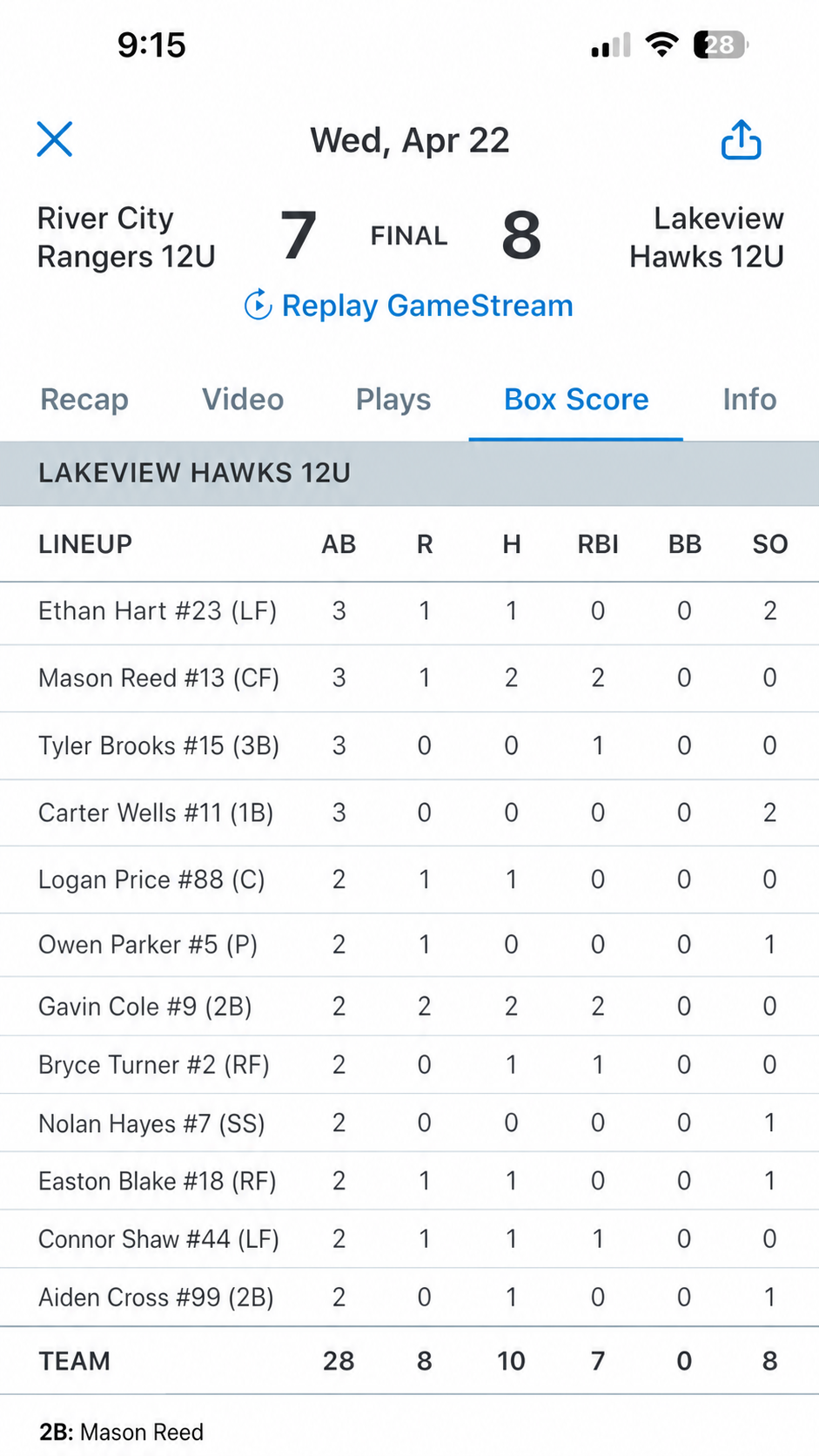
Hitter table (top of the game). 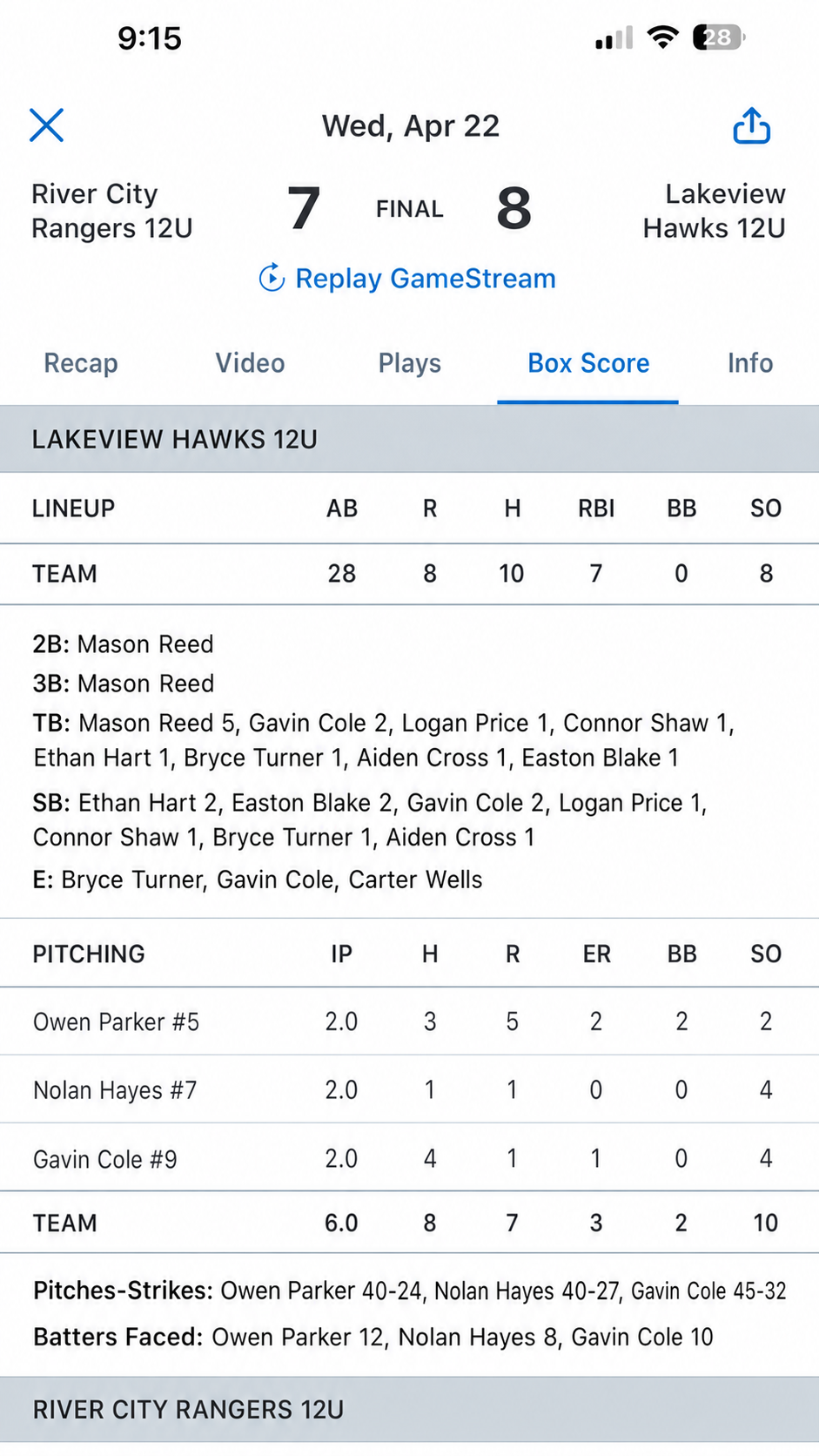
Captions plus pitching table (bottom of the game). - Step 5
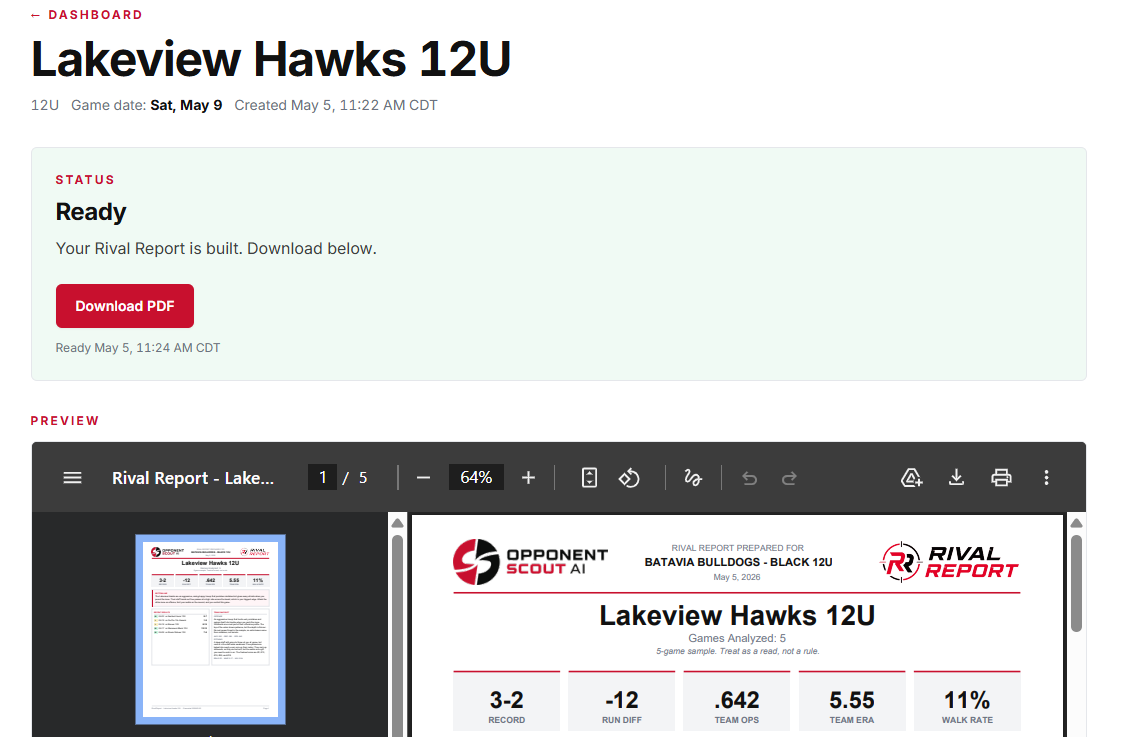
Open your Rival Report
We email you the moment your Rival Report is ready, usually a couple minutes. Five-page PDF: cover, hitters, pitching, tendencies, dugout card. Print the dugout card or pull it up on your phone in the dugout.
Ready to scout your next opponent?
Your first Rival Report is on us.